
Most buyers begin with a feature list. That's backwards. A visitor management system only works if it fits how your front desk actually runs, so start there, then check how the system fits your building and your other tools.
This guide walks through the steps for choosing a visitor management system for an office in the USA, from a one-room firm to a multi-site company.

The seven steps in this guide
Step 1: Watch your own front desk for a week
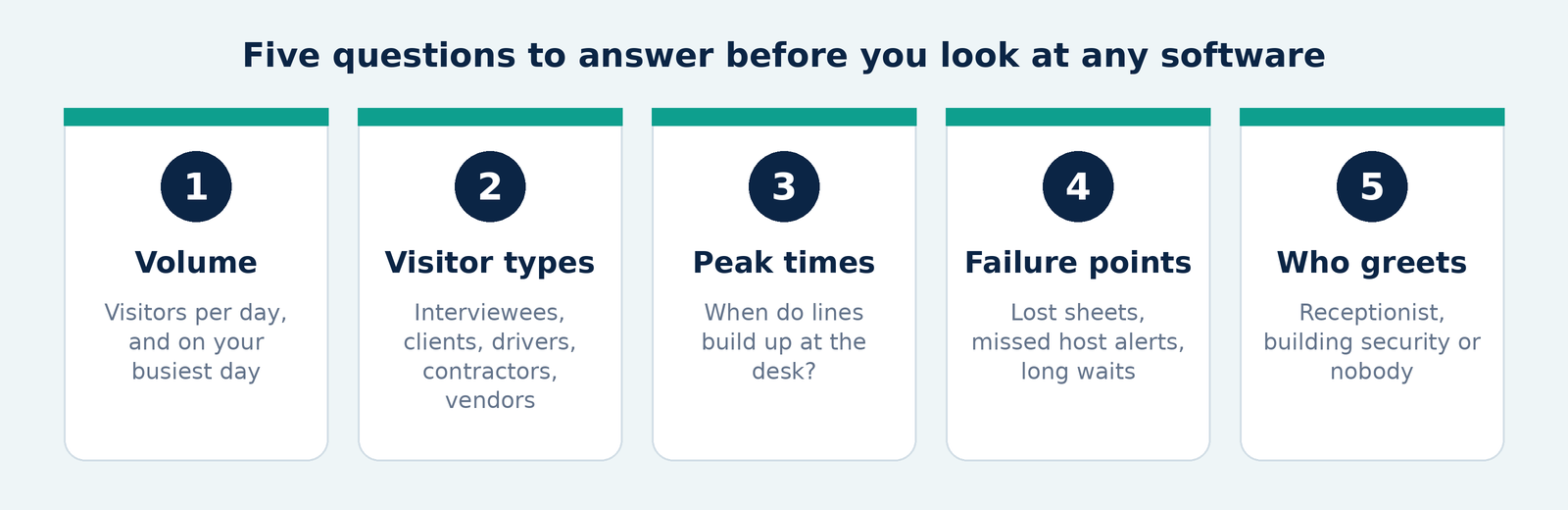
Before you look at software, answer five questions:
- How many visitors arrive on a typical day, and on your busiest day?
- Who are they: interviewees, clients, delivery drivers, contractors, vendors?
- When do the peaks happen?
- Where does the current process break: lines at the desk, a lost sign-in sheet, hosts who aren't told someone arrived?
- Who greets visitors: a receptionist, building security, or nobody?
Write the answers down. They drive almost every decision below.
Step 2: Match the system to your size
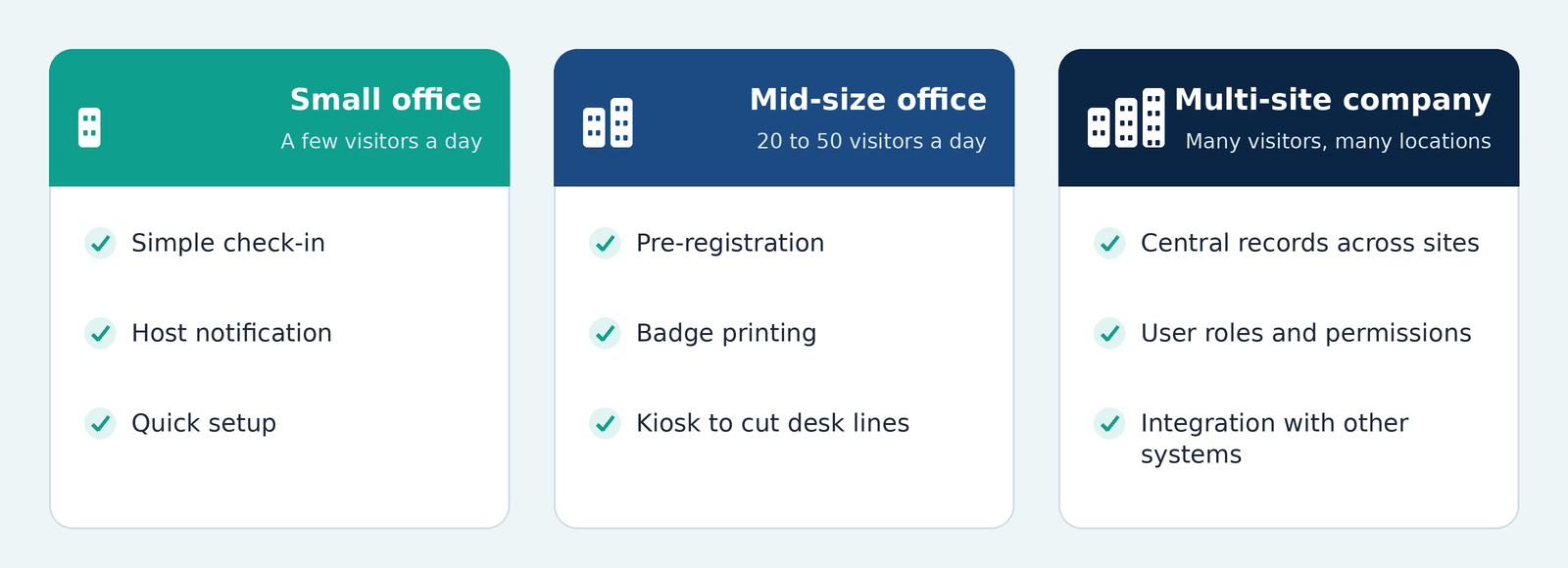
| Your situation | What matters most |
|---|---|
| Small office, a few visitors a day | Simple check-in, host notification, easy setup |
| Mid-size office, 20 to 50 visitors a day | Pre-registration, badge printing, a kiosk to cut desk lines |
| Large or multi-site company | Central records across locations, user roles, integration with other systems |
This is why "enterprise" and "small office" searches show different products. A system built for one front desk gets awkward across ten sites.
Step 3: Consider what's different for US offices
Some questions come up often for offices in the USA:
- Shared buildings. Many US offices sit in multi-tenant buildings with a shared lobby and a building security desk. Ask how your system works alongside the lobby process, so visitors don't check in twice.
- Several locations and time zones. A company with offices in New York, Chicago and Texas needs one set of records and reports, not separate setups.
- The tools your team already uses. Hosts should get alerts where they already work, such as Microsoft Teams, Slack, email or calendar invites.
- ID checks. Some offices want visitors to scan a driver's license. Decide whether you need that, because it adds a step to each check-in.
Step 4: Sort features into "need" and "nice to have"
Usually needed
- Check-in on a tablet or kiosk
- An instant message to the host when their guest arrives
- Pre-registration for expected visitors
- A searchable record of who came and when
- Visitor badges (printed or digital)
Nice, depending on your office
- Photo capture
- Document or NDA signing at check-in
- Integration with door access
- Reports across sites
Often unnecessary at first
- Extra features that add steps for every visitor
Step 5: How to read "best visitor management system" lists
"Best" depends on your office. A system that suits a 5,000-person campus will frustrate a ten-person firm. When you read a ranking, ask:
- Who was it written for?
- How many sites and visitors did it assume?
- Does the author explain how they tested?
Use lists to build a shortlist, then judge each option against your Step 1 notes.
Step 6: Questions to ask in every demo
- Can you show a visitor checking in, start to finish, in under a minute?
- What does the host see, and how fast do they see it?
- How do I pre-register a group of visitors?
- What happens if the internet goes down?
- What can I report on, and can I export it?
- How does it connect to door access or our other systems?
- Who sets it up, and who do I call when something goes wrong?
Step 7: Run a short pilot
Test with real visitors for two weeks, ideally at one entrance. Measure:
| 01 | 02 | 03 |
|---|---|---|
| Average check-in time | How often hosts miss a notification | Questions the receptionist keeps getting |
Expand only when those numbers look good.
Mistakes to avoid
- Buying on features instead of front-desk fit
- Skipping pre-registration, which is what makes check-in fast
- Not asking hosts what they need
- Rolling out everywhere at once
Ready to compare?
Frequently Asked Questions
Everything you need to know before making a decision.